This article shows you how to recover deleted files from the Recycle Bin and how to recover files after emptying the Recycle Bin.
Under normal circumstances, when you delete files on your local computer, deleted files will be temporarily stored in the Recycle Bin. Do you know how to recover deleted files from the Recycle Bin In addition, if you accidentally empty the RecycleBin, is there a way to recover files from emptied Recycle Bin Here are some easy ways you can try.
How to Recover Deleted Files From the Recycle Bin
Way 1. Use the Ctrl + Z Keyboard Shortcuts
The Ctrl + Z keyboard shortcut is used to undo the last action inWindows. If you accidentally delete a file from File Explorer or the desktop, you can immediately press
Ctrl + Z key combinations to recover deleted file from the Recycle Bin.
However, this method will not work when you perform a lot of other operations after deleting the files, such as running other applications or restarting the computer.
Way 2. Use the Restore Feature in Recycle Bin
If you can find the deleted files in the Recycle Bin, you can make use of the
Restore feature to recover files to their original locations. The steps are very easy.
Step 1. Open the Recycle Bin on your desktop.
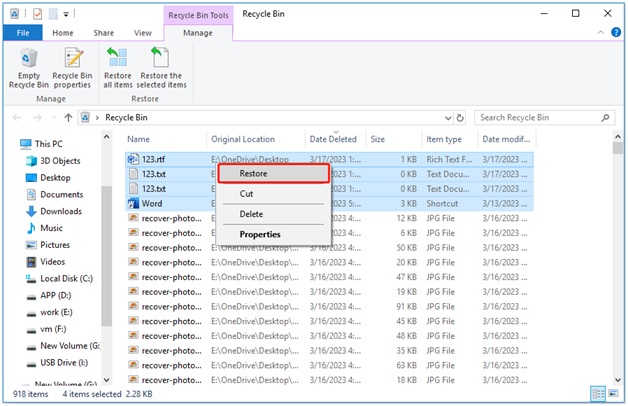
Step 2. Find and right-click the deleted files to select
Restore as shown below.
After that, you can go to the original locations of these files to view them.
Way 3. Drag Out Deleted Files Directly
What if you do not want to restore deleted files to where they are stored before In this case, you can directly drag them out from the Recycle Bin to any storage path on your computer.
As we can see, the steps to recover deleted files from the Recycle Bin are simple. However, many users reported that they have accidentally emptied the Recycle Bin or that the Recycle Bin files have disappeared automatically. To recover files from emptied Recycle Bin, you can try the following ways.
How to Recover Deleted Files After Emptying the Recycle Bin
Way 1. Recover Permanently Files With Data Recovery Software
After emptying the Recycle Bin, you cannot do a Recycle Bin recovery. In this case, the best way to recover your files is by using the
best data recovery software – MiniTool Power Data Recovery.
It is a professional and easy-to-use file recovery tool that can help you recover many types of files (documents, emails, pictures, videos, etc.) in all file storage devices including hard disks, external hard drives, USB flash drives, and so on.
What’s more, MiniTool Power Data Recovery supports recovering data from specific locations like Desktop recovery, Recycle Bin recovery, and specific folder. That is, you can let this software directly recover data from Recycle Bin.
You can get this software from MiniTool’s official site. Now let us see how to recover deleted files using this data store tool.
Step 1. Launch MiniTool Power Data Recovery.
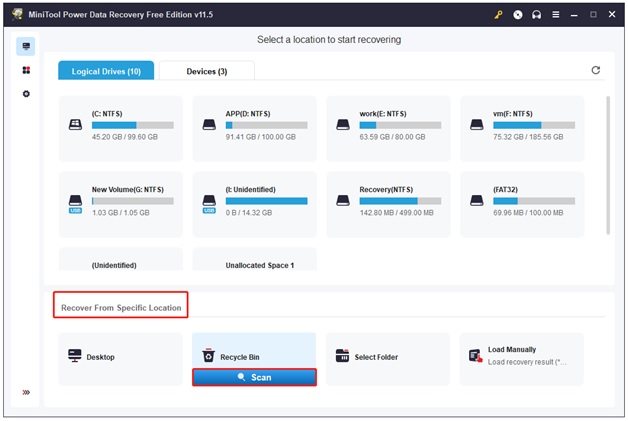
Step 2. Under the
Recover From Specific Location section, select
Recycle Bin and click
Scan (You can also select the partition where your files are located before under the
Logical Drives tab to scan).
Wait for the scan process to complete for the best scan result (You can also click the
Stop button to stop scanning once you find the wanted files).
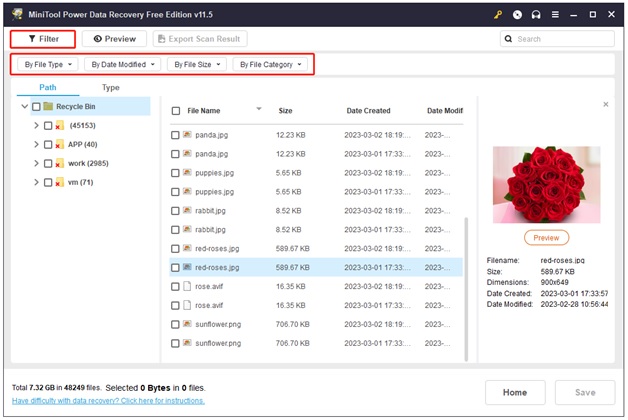
Now, to quickly find the desired files, you can make use of the
Filter feature. As shown in the figure below, you can filter found files by file size, file type, file category, and date modified.
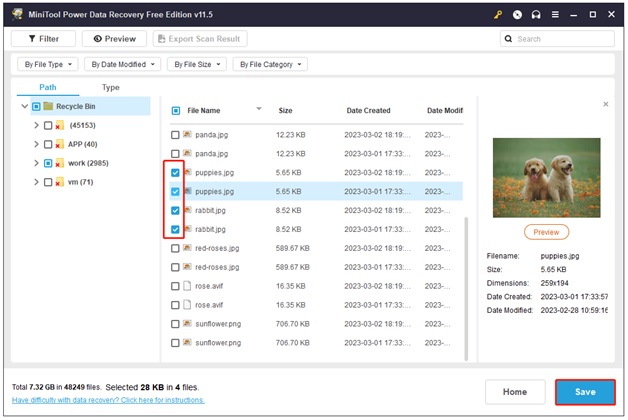
Step 3. Preview and select all needed files to choose a storage path separate from the original location for them.
Now you can view recovered files in the location you chose.
Way 2. Recover Files From Previous Versions
In addition to using
data recovery software, you can restore deleted files or folders to a previous version if you have activated File History to back up your data.
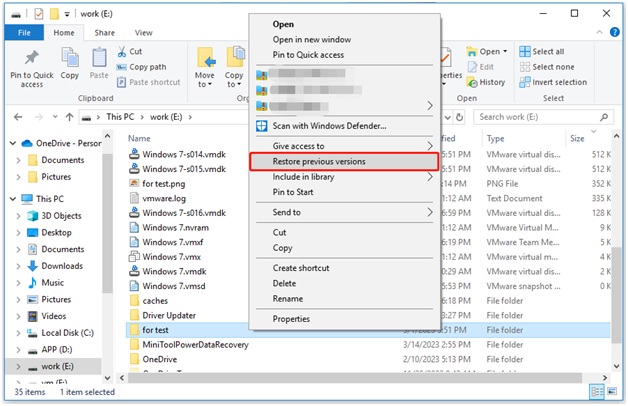
In File Explorer, right-click the folder containing the deleted files to select
Restore previous versions.
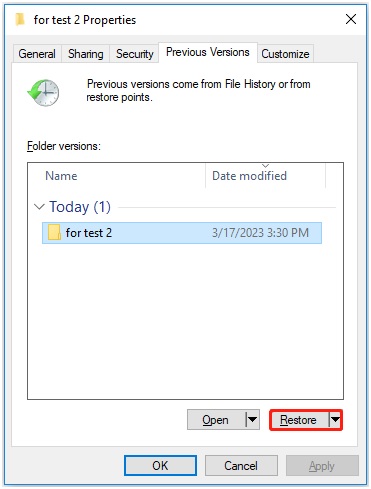
Then you can see the previous versions are listed in the new window. You just need to select the correct version and click
Restore.
Way 3. Recover Files From a Cloud Backup
Cloud backup software such as Windows 10s built-in OneDrive is popular among users. If you have made a backup using OneDrive, you can sign in to your OneDrive account to check for deleted files.
Bottom LineTo sum up, this post talks about how to recover deleted files from the Recycle Bin and how to recover deleted files after emptying the Recycle Bin. Hope the methods listed above are helpful for you.
Click here to read full news..